
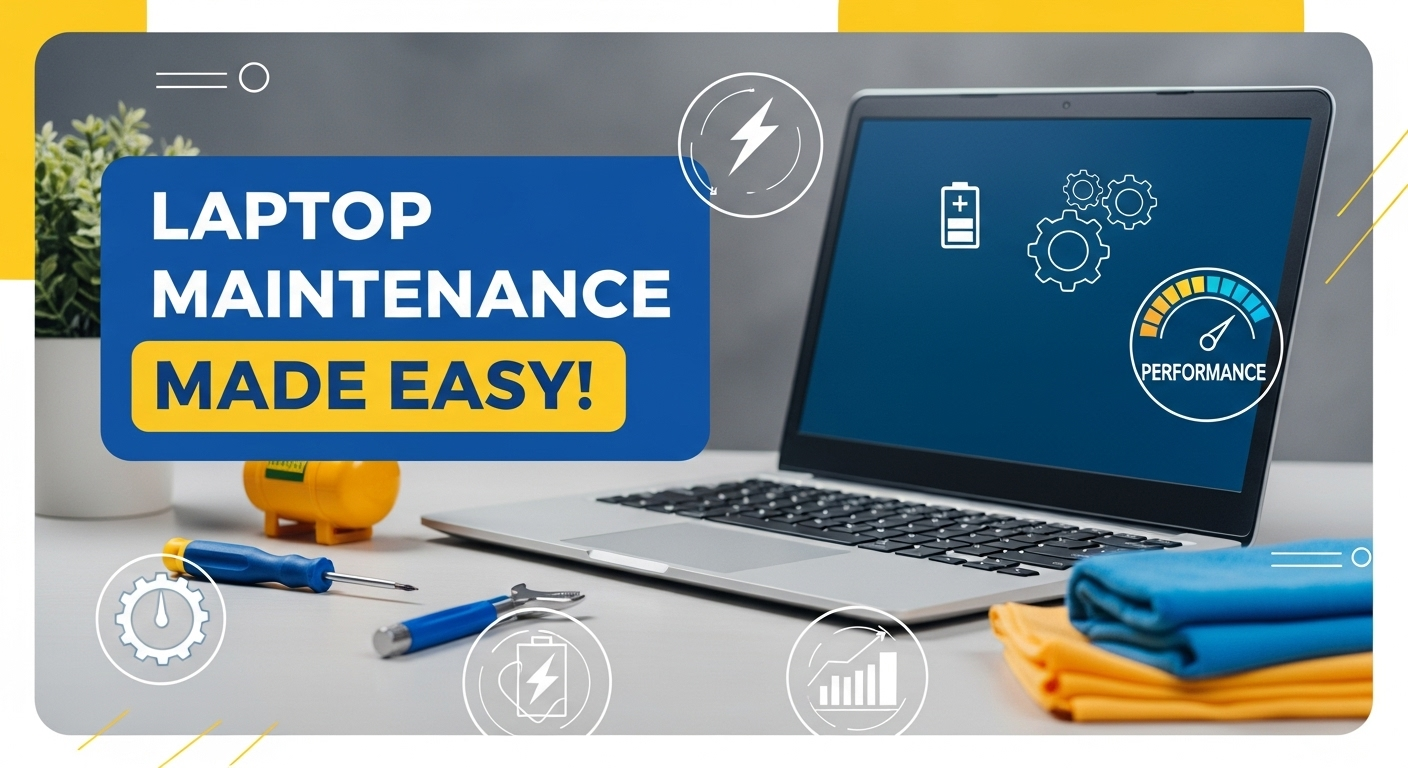
Do you ever feel your laptop is slowing down, overheating, or not performing like it used to? Most students and professionals struggle with laptop issues simply because they don’t know the right maintenance practices. A well-maintained laptop not only performs faster but also lasts longer and saves you money on repairs. Whether you’re using a Dell, HP, Lenovo, or Apple laptop, these essential tips will help you keep your device in top condition.
1. Keep Your Laptop Clean Inside and Out
Dust, crumbs, and debris can accumulate in your laptop’s keyboard, vents, and ports, affecting performance and cooling. Use a soft microfiber cloth to clean the screen and keyboard regularly. For the vents, a can of compressed air works wonders. Avoid using liquids directly on your laptop as it can damage components.
Pro Tip: Clean your laptop at least once a month to prevent dust build-up and overheating.
2. Update Software and Operating System
Many beginners ignore software updates, but keeping your operating system and apps updated is crucial. Updates often fix security vulnerabilities and improve performance. Enable automatic updates for your Windows, macOS, or Linux system to ensure you never miss an important patch.
Example: Updating Windows 11 regularly can prevent malware attacks and optimize battery life.
3. Manage Storage Effectively
A cluttered hard drive can slow down your laptop significantly. Regularly delete unnecessary files, clear browser caches, and uninstall unused programs. For larger storage needs, consider an external SSD or cloud storage solutions like Google Drive or OneDrive.
Tip: Keep at least 20% of your hard drive free to ensure smooth system performance.
4. Protect Against Viruses and Malware
Install a reliable antivirus program and enable real-time protection. Malware can severely affect your laptop’s speed, steal personal data, and even cause hardware issues in extreme cases. Avoid downloading files from untrusted websites and always check email attachments before opening them.
Pro Tip: Use Windows Defender for basic protection or consider Avast, Bitdefender, or Kaspersky for advanced features.
5. Maintain Your Battery Health
Laptop batteries degrade faster if misused. Avoid keeping your laptop plugged in all the time, and try to keep the charge between 20% and 80%. Also, perform battery calibration once every few months to ensure accurate readings.
FAQs About PM Youth Laptop Scheme Top 20 Frequently Asked Questions
Tip: If you notice your battery drains unusually fast, reduce screen brightness, close unnecessary apps, and disable Bluetooth/Wi-Fi when not in use.
6. Handle Your Laptop Carefully
Physical damage is one of the most common issues beginners face. Always carry your laptop in a padded bag, avoid eating or drinking near it, and never place heavy items on top. Simple precautions prevent broken screens, loose hinges, and keyboard damage.
7. Optimize Laptop Performance
Use built-in tools like Disk Cleanup, Disk Defragmenter (for HDD), and Task Manager to monitor and optimize performance. Remove startup programs that slow down boot time, and consider upgrading RAM or switching to an SSD if your laptop is older.
Example: Many students upgrade from HDD to SSD, which can make a 5-year-old laptop feel like new.
8. Regularly Backup Your Data
Data loss can happen due to hardware failure, accidental deletion, or malware. Always backup important files to an external drive or cloud storage. For students, this includes assignments, project files, and important notes.
Pro Tip: Set up automatic backup solutions to prevent losing critical data.
9. Monitor Laptop Temperature
Overheating reduces laptop lifespan. Ensure your laptop is on a flat, hard surface to allow proper ventilation. Avoid using it on beds or sofas. Consider using a cooling pad if your laptop often gets hot during heavy tasks like gaming or video editing.
10. Know When to Get Professional Help
Sometimes, DIY maintenance isn’t enough. If you notice strange noises, frequent crashes, or hardware malfunctions, it’s best to consult a professional technician. Don’t ignore warning signs, as small issues can become costly repairs later.
FAQs: Laptop Maintenance Tips for Beginners
Q1: What are some common laptop maintenance tasks that I should be doing?
A: Cleaning dust, updating software, backing up data, monitoring battery health, and optimizing performance regularly.
Q2: How to maintain a laptop properly for years?
A: Follow a maintenance schedule including cleaning, updates, backups, and careful handling. Avoid overheating and overcharging.
Q3: What are some PC/laptop care tips for beginners?
A: Use antivirus software, clean the keyboard, manage storage, handle the laptop carefully, and avoid food/drink near it.
Q4: How can I maintain my Dell laptop performance?
A: Keep Windows and drivers updated, clean vents, monitor battery, and avoid running too many heavy programs simultaneously.
Q5: Is it necessary to calibrate my laptop battery?
A: Yes, battery calibration helps improve accuracy and prolong battery lifespan. Perform it every 2–3 months.
Q6: How can I protect my laptop from overheating?
A: Use it on a hard, flat surface, clean vents regularly, and consider a cooling pad if performing heavy tasks.
Q7: What should I include in a laptop maintenance checklist?
A: Cleaning, updates, antivirus scans, storage management, battery care, backups, and performance optimization.
Q8: Where can I get laptop maintenance services near me?
A: Look for authorized service centers from your laptop brand or trusted local repair shops with positive reviews.
Conclusion
Laptop maintenance is not just about keeping your device clean—it’s about ensuring long-term performance, safety, and reliability. By following these 10 essential tips, you can prevent common problems, extend your laptop’s lifespan, and enjoy a smooth computing experience. Remember, a little care today saves a lot of hassle tomorrow.